

Python is a widely-used general-purpose programming language known for its simplicity, readability, and vast range of applications. Whether you are developing web applications, performing data analysis, or automating tasks, Python is an excellent choice.
As of updating this article on July 2023, the latest Python version is Python 3.11.x. However, Python regularly releases new versions, so always check the Python official website for the most recent version.
This guide will show you step by step how to install Python 3.x on your Windows computer.
Step 1: Download Python Windows Installer
First of all, download the required version of the Python installer from the official download page. Visit Python official download page and download required version of installer. For this tutorial, I have downloaded the latest version of Python 3.10.
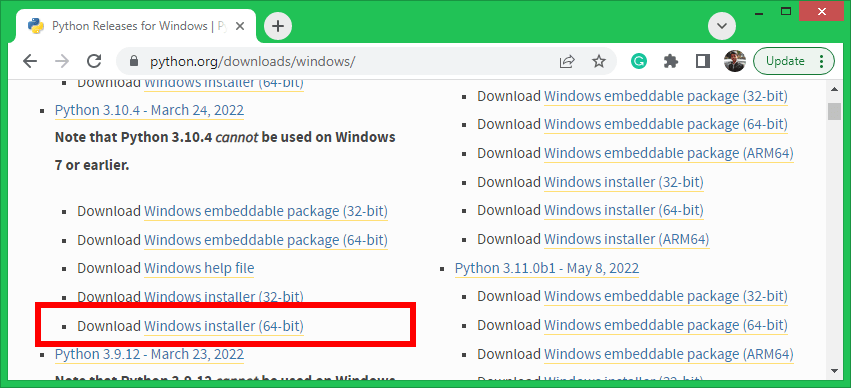
You can find the installer file under the Downloads directory.
Step 2: Installing Python on Windows
Once the installer file is downloaded successfully. Double click on the installer file and follow the installation wizard.
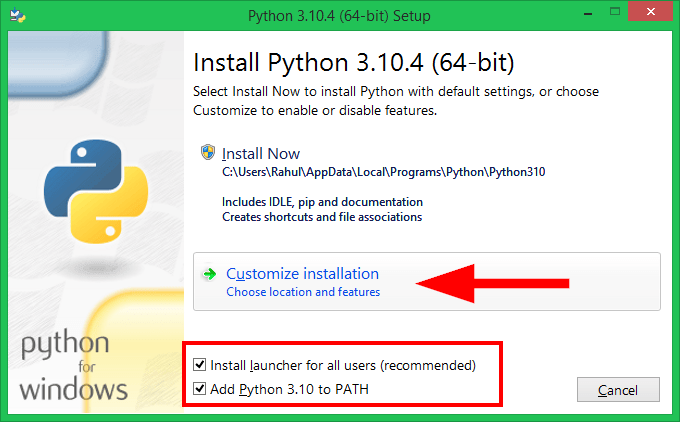
- First, check the boxes for Install python for all users and Add Python 3.10 to PATH. Then click on Customize Installation button.
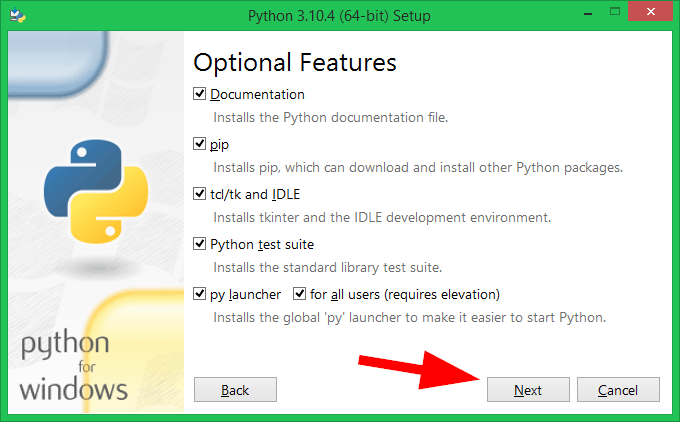
- Now select the features you need to install. Select all features (if required) and click Next.
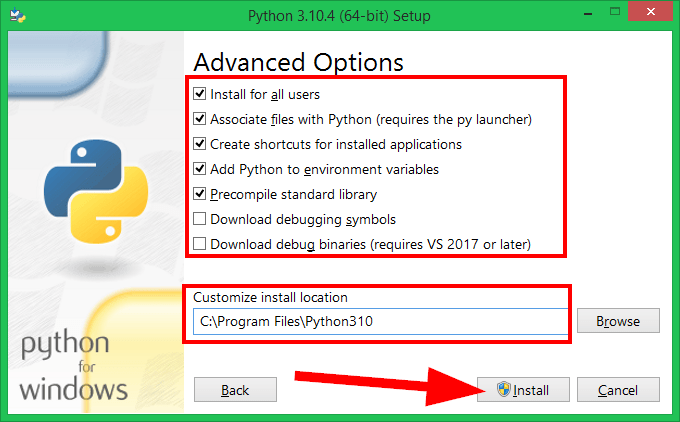
- You will get a list of Advanced Options. Select the required options or select all. Now click the Install button to begin installation.
- You will see a successful installation message like below.
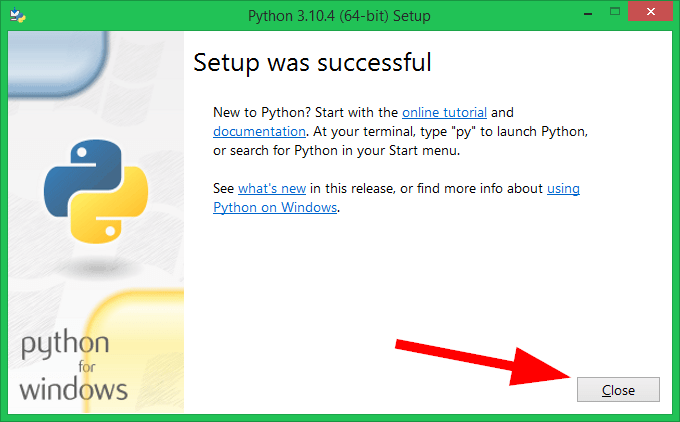
That’s it. You have successfully installed Python 3 on a Windows system.
Step 3: Verify Python Installation
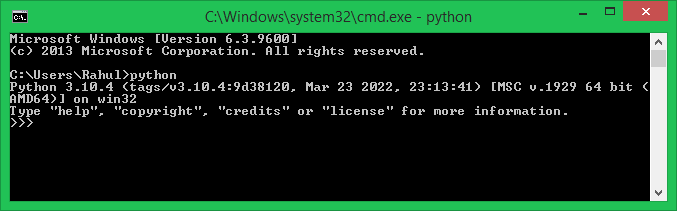
The Python installer will update the PATH environment variable. Open the windows command prompt and type the python command. If everything is installed and configured successfully, you will see a message like the below.
Conclusion
You now have Python 3.x installed on your Windows computer! You can begin writing and executing Python scripts, install additional Python packages using pip, and explore the vast world of Python programming. Remember to keep your Python version up-to-date for the latest features and security updates. Happy coding!
How did it make you feel?

How do install python on ubuntu … btw nice article exact on point