

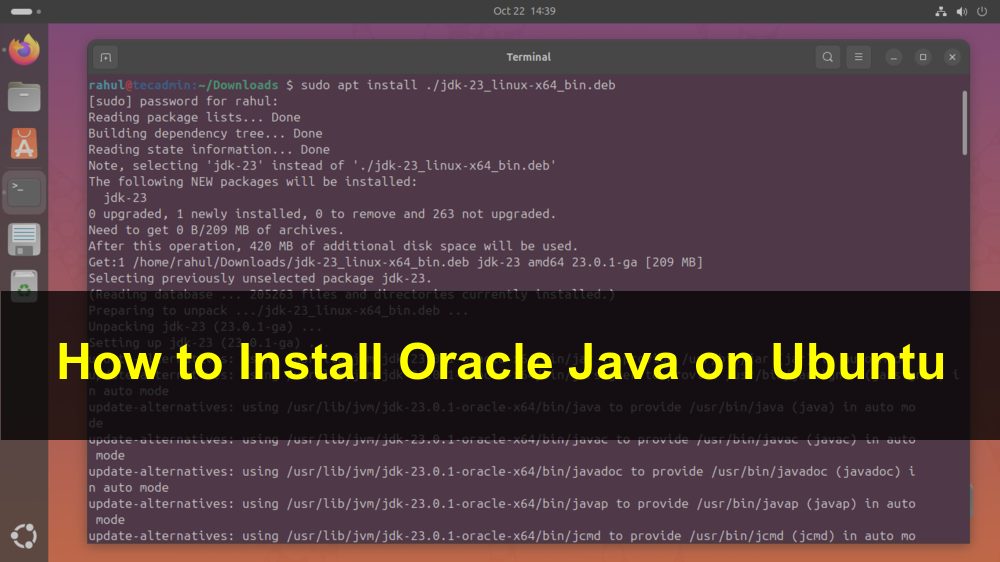
Oracle Java 25 has been released for the Java SE platform. Since this is a long-term support (LTS) version, it will be supported until September 2028. It includes many improvements and bug fixes. If you are using a workstation, you should consider upgrading to this version. Production users should upgrade only after making sure all their applications are compatible with this version.
This tutorial will help you to install Oracle Java 25 on Ubuntu 24.04 LTS, 22.04 LTS ,and 20.04 LTS systems using the official Debian file. Follow the steps below to install Java on the Ubuntu command line.
Step 1: Download Java 25 Debian File
Oracle Java Debian packages are available for download from the official site. You can visit Oracle Java Downloads Page for more information and updates. Open a terminal and run the command below to download the Java 25 package:
wget https://download.oracle.com/java/25/latest/jdk-25_linux-x64_bin.deb
Step 2: Install the Downloaded Package
You will find the downloaded Java Debian file in the Downloads directory or your current working directory if you used the command line to download it. Go to the directory where the installer file is located.
cd ~/Downloads
Next, install the Debian file using the apt package manager.
sudo apt install -f ./jdk-25_linux-x64_bin.deb
After the package is successfully installed, you can check the installed version by running the following command.
java -version
java 25.0.1 2025-10-21 LTS
Java(TM) SE Runtime Environment (build 25.0.1+8-LTS-27)
Java HotSpot(TM) 64-Bit Server VM (build 25.0.1+8-LTS-27, mixed mode, sharing)
Step 3: Set Up JAVA_HOME and JRE_HOME Variables
The installer script automatically sets the environment variables for you. You can check these variables in the /etc/profile.d/jdk.sh script.
sudo tee /etc/profile.d/jdk.sh > /dev/null << 'EOF'
export J2SDKDIR=/usr/lib/jvm/java-25-oracle-64
export J2REDIR=/usr/lib/jvm/java-25-oracle-64
export PATH=$PATH:/usr/lib/jvm/java-25-oracle-64/bin:/usr/lib/jvm/java-25-oracle-64/db/bin
export JAVA_HOME=/usr/lib/jvm/java-25-oracle-64
export DERBY_HOME=/usr/lib/jvm/java-25-oracle-64/db
EOF
Conclusion
You have successfully installed Oracle Java 25 on your Linux system. By following these steps, you can easily set up Java for your development or production environment. If you're running Java-based web applications, you may also need to install a Tomcat server. Always ensure that your applications are compatible with the new version before upgrading.
How did it make you feel?


sudo apt install ./filename
Very helpful article. I had trouble with my minecraft server because I didn’t know my default java version was set to 11 instead of 17.
Is this somehow affected by the new Java license Oracle published on April 16, 2019?
Thanks