

Question – How to find the local IP address of CentOS 8 Linux system? 2 Ways to find IP address on CentOS 8Desktop edition or CentOS 8 Server edition?
CentOS 8 is the latest available Linux operating system from the CentOS team. The desktop provides an attractive GUI for working with it. You can either use the command prompt to check the current IP address on your system or use a GUI option to view the local IP address on your system.
Follow this tutorial to configure new IP on CentOS 8 desktop system.
Method 1 – Check IP via Command (CentOS 8)
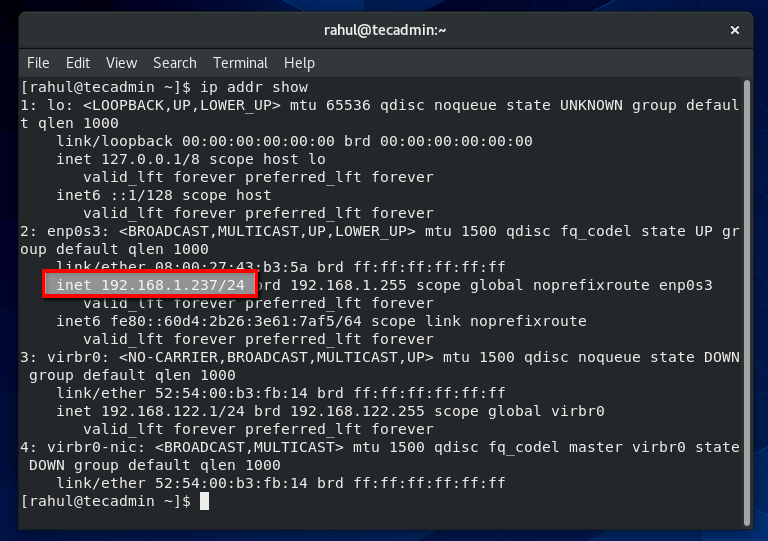
Open a command terminal by pressing CTRL + ALT + T on your CentOS system. Now type following IP command to view current IP addresses configured on your system.
ip addr show
Method 2 – Check IP via GUI (CentOS 8)
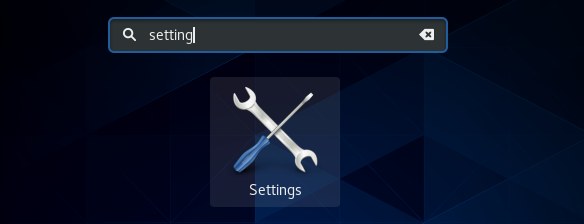
For this option, you must have Desktop installed on your CentOS 8 system. Now, login to your CentOS Desktop system and open settings windows on your machine as showing in the below screen.
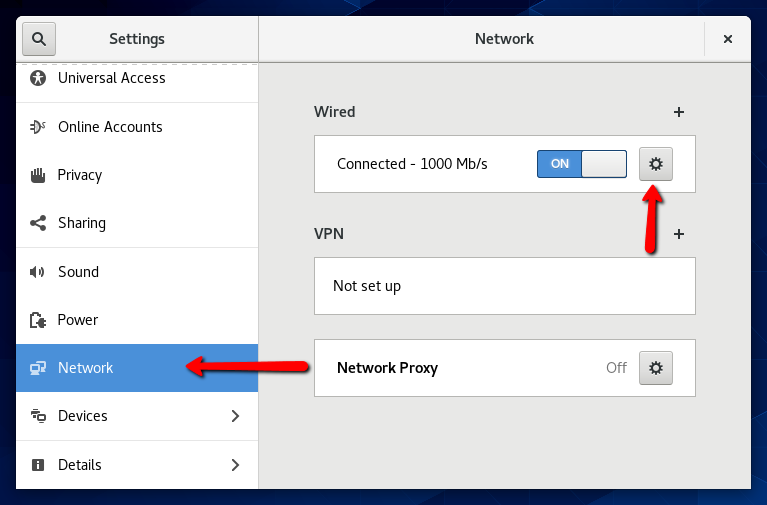
In the left sidebar click on the Network tab. After that click icon to open setting for your systems network interface as shown in the below screen.
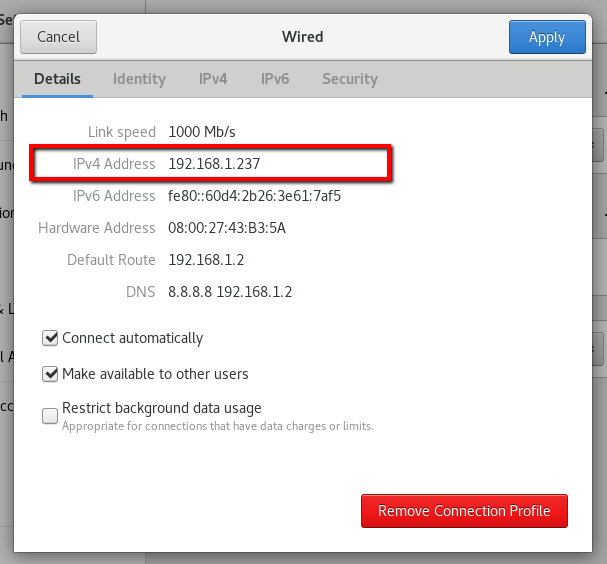
Here is the IP address of your Ubuntu desktop system.
How did it make you feel?

Thank you for the information
Thank you for sharing this useful information. I just want to know ip addr doesn’t work in centOS 8?
Can you teach how can I config ikev2 on centos and radius it with pam radius or clientradius-ng!?