

TeamViewer is a powerful remote desktop and file sharing application that works with most operating systems and mobile devices. In order to commercialize the use of TeamViewer, you have to purchase a license. You can use it free for personal use only.
An RPM package of Teamviewer is built by the official team and is available for installation on Fedora systems. You can download the package from its official website.
This tutorial described how to install TeamViewer on the Fedora Linux system.
Prerequisites
Assuming, you have a running Fedora desktop system. Have access to the desktop environment with a sudo privileged account. The installation part can also be performed via the command line.
Installing TeamViewer on Fedora
First of all, download the latest available version of TeamViewer RPM packages from its official download page. At the writing time of this tutorial, TeamViewer 15 is the latest available version to download and install on Fedora systems.
- Downloading the TeamViewer Debian Package – Download the latest verson of TeamViewer Debian package. It is available at TeamViewer for Linux download page. You can also download it via the Linux command line.
wget https://download.teamviewer.com/download/linux/teamviewer.x86_64.rpm - Installing TeamViewer – Use default Debian package installer (dpkg) to install Team packages. In case dpkg failed with missing dependencies, use apt-get to complete TeamViewer installation on the Ubuntu system including all the required dependencies.
sudo dnf install teamviewer.x86_64.rpm
That’s it. You have successfully installed TeamViewer on a Fedora system.
Using TeamViewer
TeamViewer application has been successfully installed on a Fedora Linux system. Now, launch the “TeamViewer” from the applications. The Application Launcher location may change as per the desktop environment. You will find an application launcher as shown below screenshot:
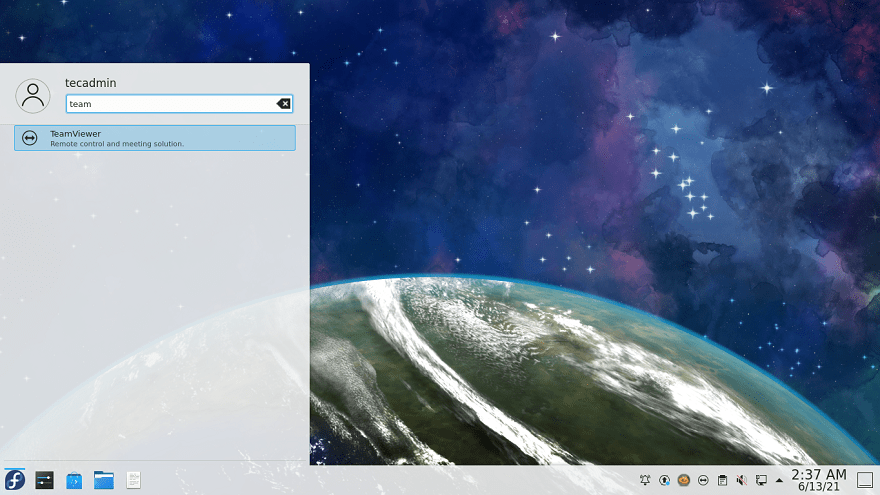
Click the TeamViewer launcher icon to start the application. With the first time startup, click “Accept License Agreement” button to continue application.
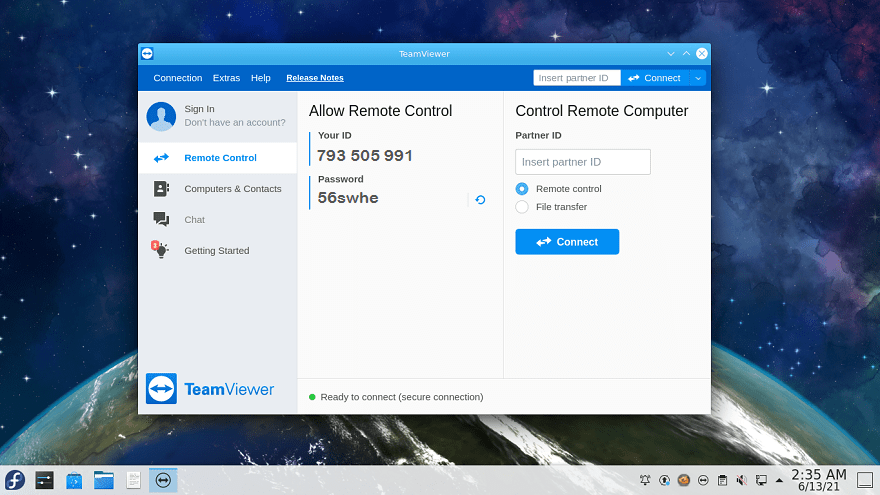
Once the application starts, You will see the TeamViewer id of your application with a random password. You can change this password anytime or set a custom password.
Use this ID to connect your system to remote systems running with the same version of the Teamviewer application. You can also other systems with this application by entering their TeamViewer ID in the “partner ID” input box.
Conclusion
This tutorial helped you to install TeamViewer on Ubuntu systems. Additionally provides you with basic details to connect partner systems.
How did it make you feel?
