

MariaDB is a popular, open-source relational database management system that is a fork of MySQL. It is widely used for storing and managing data. This guide will walk you through the steps to install MariaDB on Ubuntu 24.04. Follow these simple instructions, and you will have MariaDB running on your system.
Steps to Install MariaDB on Ubuntu 24.04
Here is the step-by-step instruction to install and configure MariaDB database server on Ubuntu 24.04 Noble Numbat Linux system.
Step 1: Update Your System
First, we need to make sure that all the existing software on your system is up-to-date. Open a terminal and run these commands:
sudo apt update && sudo apt upgrade -y
This command will update the list of available package and then installs the latest versions of the packages.
Step 2: Install Software Properties Common
To add the MariaDB repository, we need to install a package called software-properties-common. This package provides tools to manage repositories. Run this command:
sudo apt install software-properties-common -y
Step 3: Add MariaDB Repository
Next, add the MariaDB repository to your system. This will allow you to install the latest version of MariaDB. Run this command:
sudo add-apt-repository 'deb [arch=amd64,arm64,ppc64el] http://mirror.zol.co.zw/mariadb/repo/11.5/ubuntu noble main'
This command adds the MariaDB repository for version 11.5 to your system.
Step 4: Install MariaDB Server
After adding the MariaDB repository, update your package list again:
sudo apt update
This ensures that your system recognizes the new repository.
Now, install MariaDB by running this command:
sudo apt install mariadb-server -y
In the above command mariadb-server is the package that contains MariaDB server and
-y automatically answers “yes” to any prompts during the installation.
Step 5: Start MariaDB Service
After the installation is complete, you need to start the MariaDB service. Run this command:
sudo systemctl start mariadb
This command starts the MariaDB service. To make sure MariaDB starts automatically when your system boots, enable the service with this command:
sudo systemctl enable mariadb
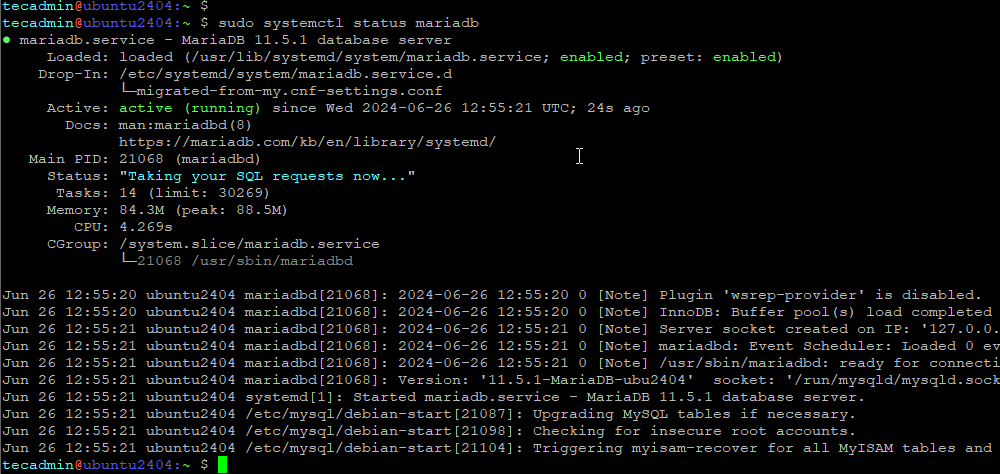
You can verify the MariaDB service status using the following command:
sudo systemctl status mariadb
Step 6: Secure MariaDB Installation
MariaDB comes with a security script to help secure your installation. Run the following command to start the security script:
sudo mariadb_secure_installation
You will be asked a series of questions to secure your MariaDB installation. Here are the recommended responses:
- Enter current password for root (enter for none): Press Enter if you haven’t set a root password yet.
- Switch to unix_socket authentication [Y/n]: Choose ‘Y’ for enabling sockent authentication or ‘N’ to disable it. Read this
- Set root password: Choose Y and enter a strong password for the root user.
- Remove anonymous users: Choose Y.
- Disallow root login remotely: Choose Y.
- Remove test database and access to it: Choose Y.
- Reload privilege tables now: Choose Y.
Step 7: Verify MariaDB Installation
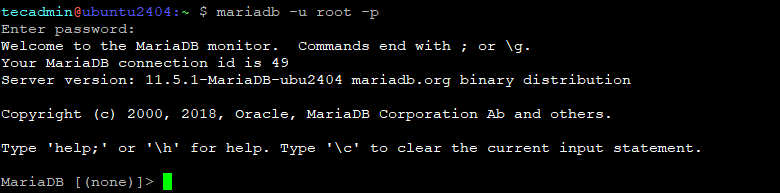
To check if MariaDB is installed and running correctly, log in to the MariaDB root user account with this command:
sudo mariadb -u root -p
Enter the root password you set earlier. If you see the MariaDB prompt (MariaDB [(none)]>), it means MariaDB is installed and running correctly.
Step 8: Create a Database and User (Optional)
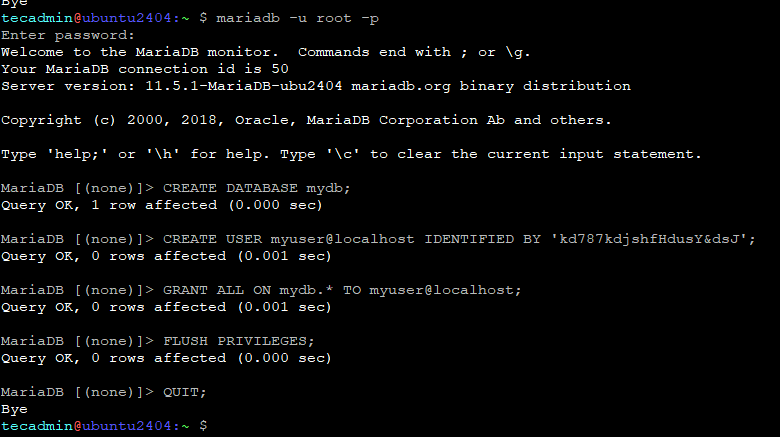
If you want to create a new database and user, you can do it from the MariaDB prompt. For example, to create a database named “mydb” and a user named “myuser”, run:
CREATE DATABASE mydb;
CREATE USER myuser@localhost IDENTIFIED BY 'secure_password';
Replace the ‘secure_passowrd’ with you password. You can also replace ‘myuser@localhost’ with ‘myuser@%’ to allow remote authentication for user.
You may also need to assign privileges on database to newly created user.
GRANT ALL ON mydb.* TO myuser@localhost;
To exit the MariaDB prompt, type:
EXIT;
Conclusion
You have successfully installed MariaDB on Ubuntu 24.04. You can now start using MariaDB to manage your databases. If you have any issues, you can refer to the MariaDB documentation or seek help from online forums. Enjoy managing your data with MariaDB!
How did it make you feel?