
How to install VirtualBox on macOS? A step-by-step tutorial to install VirtualBox on the macOS system along with an extension pack.
VirtualBox is a popular, cross-platform virtual machine manager that allows you to create virtual machines (VMs) on your Mac. VMs can be used to run different operating systems at the same time. They’re also useful for testing software in isolation, without risking your real computer.
In order to install VirtualBox on macOS, you need to have a Mac with a 64-bit processor running macOS 10.11 or higher. VirtualBox runs on Windows, macOS, and Linux, and supports a wide range of guest operating systems. This blog post helps you how to install VirtualBox on macOS systems.
How to Install VirtualBox on MacOS
The VirtualBox development team provides a package file for macOS systems. You can download this file directory from Virtualbox’s official website. Then install it on your system. The following steps will help you to step by step installation of VirtualBox on your macOS system.
- Visit the VirtualBox’s download page and download the latest available version for your macOS. Download the package based on your CPU (Intel or Arm66).
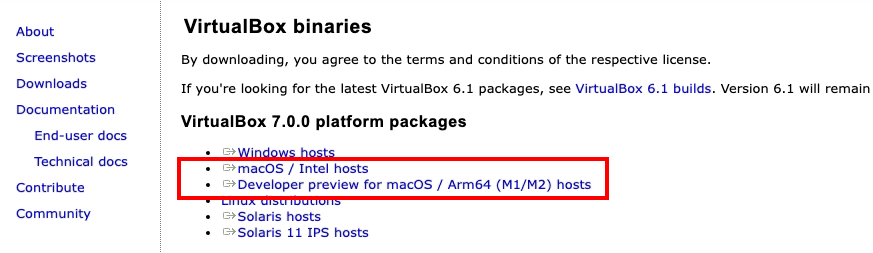
Downloading VirtualBox Package for macOS - The downloaded file will be stored in the Downloads folder. Click to open the downloaded VirtualBox .dmg file. You will see the following screen. Double-click on “VirtualBox.pkg” to begin the installation process.
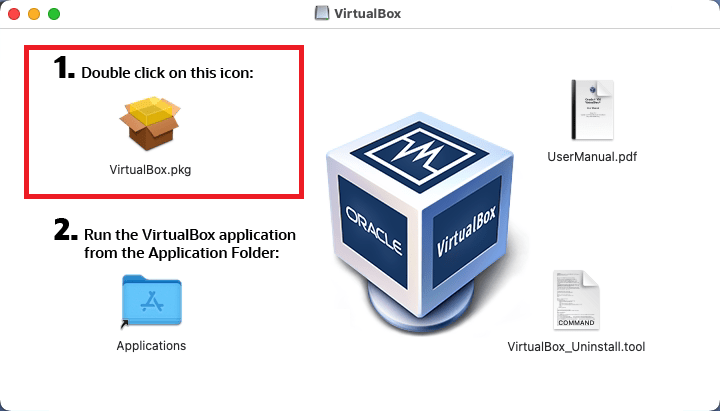
Begin the VirtualBox installation - An installation wizard will start. Click the Continue button:
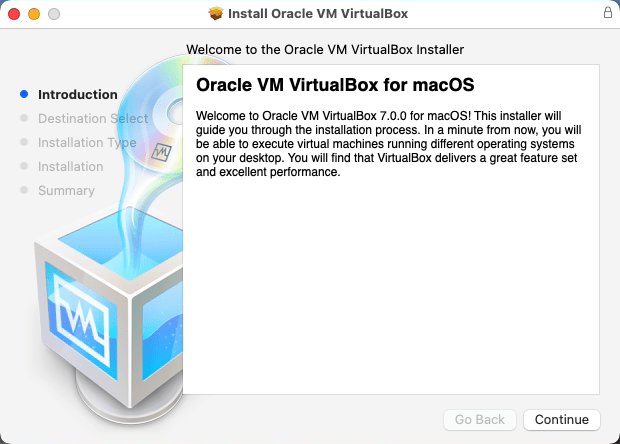
Click “Continue” button - You can change the installation location by clicking “Change Install Location”. To go with the default installation location, simply click Install button:
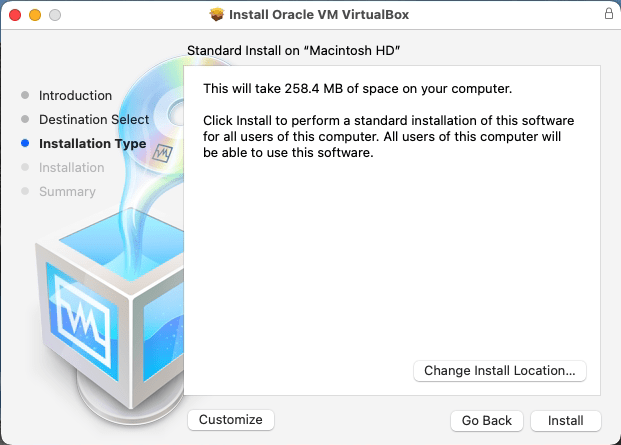
Click “Install” to continue installation - Enter the login credentials to authorize the installation. Then click the “Install Software” button to continue the installation process.

Input “Admin” credentials - On successful installation, you will see the output as below screenshot:
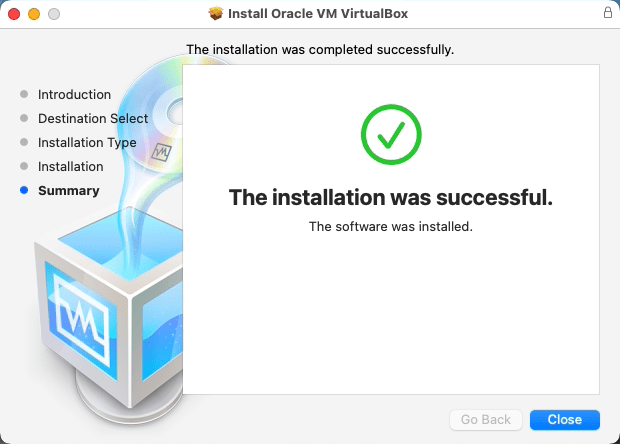
Successful Installation of VirtualBox on macOS - The VirtualBox installation has been successfully completed on your macOS. The VirtualBox launcher will be in your “Applications” folder.
Install VirtualBox Extension Pack on macOS
The VirtualBox provides additional features using the extension pack. For example, it allows using physical USB (2.0 and 3.0 )devices connected to the host machine. It also allows you to access Webcam and VirtualBox Remote Desktop Protocol (VRDP).
- Visit VirtualBox’s extension pack download page and download the package version the same as the VirtualBox version.

Download VirtualBox Extension Pack on macOS - Next execute the following command from the terminal to install the package.
sudo VBoxManage extpack install Downloads/Oracle_VM_VirtualBox_Extension_Pack-7.0.0.vbox-extpackPress Y to accept the license terms to complete the installation. On successful installation, you will see the message Successfully installed “Oracle VM VirtualBox Extension Pack”.
Conclusion
Once you install VirtualBox, create a new virtual machine by clicking the “New” button and following the remaining steps to set up your new machine. Make sure that you select the correct operating system version.
This step-by-step tutorial helped you to install VirtualBox on your macOS system.
How did it make you feel?