

ChromeDriver is a small software that helps other programs (like Selenium) to control Google Chrome browser automatically. If you want to automate a web browser using Selenium on Ubuntu or any other system, you need ChromeDriver. This small software helps Selenium control Google Chrome for testing websites or scraping data.
In this tutorial, we will help you to install correct ChromeDriver version that work properly with installed Google Chrome version on your Ubuntu and other Debian based systems in a very simple way.
Step 1: Update Your System
- Open the Terminal (press
Ctrl + Alt + T). - Execute following command to update your system packages:
sudo apt update && sudo apt upgrade -y
Step 2: Install Google Chrome
Before installing ChromeDriver make sure you have already installed Google chrome browser on your system. You can also install latest Google Chrome using:
wget https://dl.google.com/linux/direct/google-chrome-stable_current_amd64.debsudo apt install -f ./google-chrome-stable_current_amd64.deb -y
Check if Chrome is installed:
google-chrome --version
Step 3: Install Correct ChromeDriver Version
ChromeDriver can be downloaded form official download page. It is important that you install the same version of Chromedriver as Google chrome. So follow the below instructions to download and configure correct Chromedriver:
- Check your Chrome version:
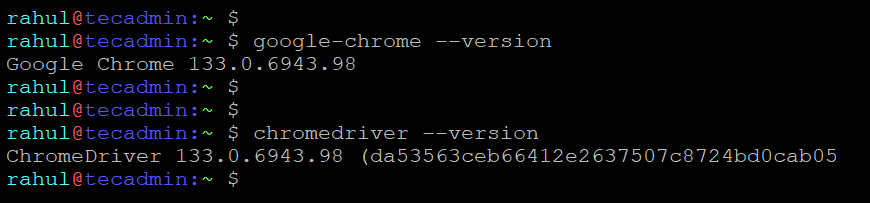
google-chrome --versionOutput: Google Chrome 133.0.6943.98 - Download the matching ChromeDriver version. Replace
133.0.6943.98in below command with the version shows by above command:wget https://storage.googleapis.com/chrome-for-testing-public/133.0.6943.98/linux64/chromedriver-linux64.zip - Extract and configure ChromeDriver to make it globally accessible:
unzip chromedriver-linux64.zipsudo mv chromedriver-linux64/chromedriver /usr/local/bin/chromedriversudo chmod +x /usr/local/bin/chromedriver
Step 4: Verify ChromeDriver Installation
Run this command to check if ChromeDriver is installed:
chromedriver --version
If the output is like this:
ChromeDriver 133.0.6943.98 (da53563ceb66412e2637507c8724bd0cab05e453-refs/branch-heads/6943_85@{#7})
Then the installation is successful!
Step 5: Test ChromeDriver with Selenium
Install Python and Selenium:
pip install selenium
Create a test script:
from selenium import webdriver
from selenium.webdriver.chrome.options import Options
from selenium.webdriver.chrome.service import Service
import logging

def initialize_driver():
    """Initialize and configure Chrome WebDriver"""
    try:
        # Set up logging
        logging.basicConfig(level=logging.INFO)
        logger = logging.getLogger(__name__)

        # Configure Chrome options
        chrome_options = Options()
        chrome_options.add_argument("--headless")
        chrome_options.add_argument("--disable-gpu")
        chrome_options.add_argument("--no-sandbox")
        chrome_options.add_argument("--disable-dev-shm-usage")

        # Initialize driver with service object
        service = Service()
        driver = webdriver.Chrome(service=service, options=chrome_options)

        return driver, logger

    except Exception as e:
        print(f"Failed to initialize driver: {str(e)}")
        return None, None

def main():
    """Main function to run the browser automation."""
    driver, logger = initialize_driver()

    if driver:
        try:
            # Navigate to Google
            driver.get("https://www.google.com")
            logger.info("Chrome opened successfully!")

        except Exception as e:
            logger.error(f"An error occurred: {str(e)}")

        finally:
            # Ensure driver is properly closed
            driver.quit()
            logger.info("Browser closed.")

if __name__ == "__main__":
    main()
Run the script:
python test_selenium.py
On successful run, you should see the following output:
INFO:__main__:Chrome opened successfully!
INFO:__main__:Browser closed.
Conclusion
Now you have installed correct ChromeDriver version on Ubuntu without any errors. You can use it for Selenium automation, testing websites, or web scraping etc. If you face any issues, check your Chrome version and download the correct ChromeDriver version again.
How did it make you feel?