

For freelancers using Ubuntu, the Upwork Desktop App is an essential tool for tracking time, communicating with clients, and managing projects. Thankfully, Upwork provides a Debian package (.deb) for Linux users, making the installation process straightforward. This guide will walk you through the steps to download and install the Upwork Desktop App on your Ubuntu system.
Pre-requisites
Before proceeding with the installation, ensure your Ubuntu system is up-to-date to avoid any compatibility issues. Open a terminal and execute the following commands:
sudo apt updatesudo apt upgrade
Step 1 of 3Downloading the Upwork Desktop App
- Open a Web Browser: Begin by opening your preferred web browser on your Ubuntu system.
- Navigate to the Download Page: Go to the official Upwork download page for Linux at https://www.upwork.com/ab/downloads/?os=linux.
- Download the Debian Package: Look for the .deb file, which should be named similarly to upwork_5.8.0.33_amd64.deb (note that the version number may vary). Click on the download link to start the download process.
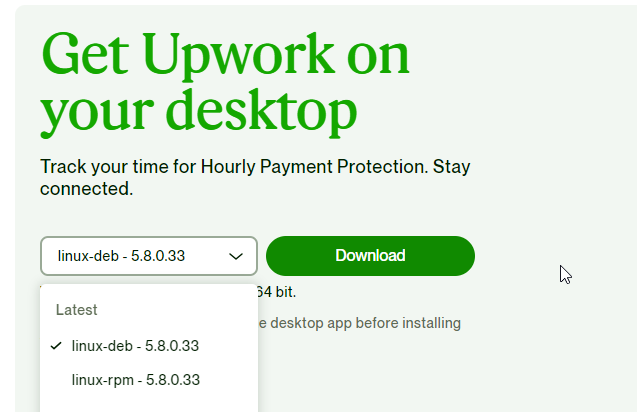
Download Upwork Debian Package
Step 2 of 3Installing the Upwork Desktop App
After downloading the .deb file, you can proceed with the installation using either the graphical user interface (GUI) or the command line.
Option 1: GUI Installation
- Open the Downloads Folder: Navigate to your Downloads folder using the file manager.
- Install the Package: Double-click on the downloaded .deb file. This action will open the Ubuntu Software Center (or another package installer, depending on your Ubuntu version). Click on the “Install” button.
- Authenticate the Installation: You may be prompted to enter your password. Type it in to authenticate the installation process.
Option 2: Command Line Installation
- Open a Terminal: Press Ctrl + Alt + T to open a terminal window.
- Navigate to the Downloads Directory: Use the cd command to change to the directory where the .deb file is located. Typically, this will be the Downloads folder:
cd ~/Downloads - Install the Package: Execute the following command to install the Upwork Desktop App:
sudo dpkg -i upwork_5.8.0.33_amd64.debReplace
upwork_5.8.0.33_amd64.debwith the actual filename of the downloaded package. - Resolve Dependencies: If you encounter any missing dependencies, run the following command to fix them:
sudo apt-get install -f
Step 3 of 3Launching the Upwork Desktop App
After installation, you can launch the Upwork Desktop App by searching for “Upwork” in your application menu or by running upwork from the terminal.
Conclusion
Installing the Upwork Desktop App on Ubuntu is a simple process, thanks to the provided Debian package. With the app installed, you can efficiently manage your freelancing tasks directly from your Ubuntu desktop. Remember to check for app updates regularly to ensure you have the latest features and security improvements.
How did it make you feel?
