

The Red Hat Package Manager (RPM) is an essential tool for managing software on RPM-based Linux distributions such as Red Hat Enterprise Linux (RHEL), CentOS, Fedora, and SUSE. It simplifies the process of installing, upgrading, verifying, querying, and removing software packages. In this comprehensive guide, we will delve into the RPM command, exploring its capabilities through practical examples to help you master package management on your Linux system.
Introduction to RPM
RPM packages are digital containers for software, comprising the software itself along with metadata about the package like its version, dependencies, and a description. The RPM command facilitates interaction with these packages, offering a powerful suite of options to manage your system’s software efficiently.
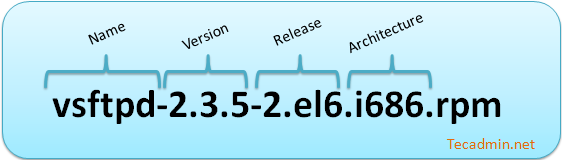
RPM naming format:
Installing Packages with RPM
To install an RPM package, the basic syntax is as follows:
rpm -ivh package-name.rpm
- `i` stands for install.
- `v` enables verbose output, showing progress and messages.
- `h` displays a hash-mark progress bar.
Example:
rpm -ivh httpd-2.4.37-16.el8.x86_64.rpm
This command installs the Apache HTTP Server package.
Upgrading Packages
To upgrade an installed package to a newer version, use:
rpm -Uvh package-name.rpm
- `U` stands for upgrade. It installs the package if it’s not already installed.
Example:
rpm -Uvh httpd-2.4.38-17.el8.x86_64.rpm
Querying Installed Packages
To list all installed RPM packages, use:
rpm -qa
- `q` stands for query.
- `a` lists all installed packages.
Example:
To find if httpd is installed:
rpm -q httpd
Removing Packages
To remove an installed package, use:
rpm -e package-name
- `e` stands for erase.
Example:
rpm -e httpd
This command removes the Apache HTTP Server package from your system.
Verifying Packages
RPM provides a way to verify the integrity and configuration files of installed packages:
rpm -V package-name
- `V` stands for verify.
Example:
rpm -V httpd
This checks for changes in the installed httpd package.
Querying Package Files
To query which package a file belongs to:
rpm -qf /path/to/file
Example:
rpm -qf /etc/httpd/conf/httpd.conf
Using RPM with YUM/DNF
While RPM is powerful on its own, it does not automatically resolve dependencies. Modern RPM-based systems use YUM or DNF for dependency resolution. For instance, to install a package with DNF, which automatically resolves and installs dependencies, use:
dnf install package-name.rpm
Best Practices
- Always use YUM or DNF when possible to handle dependencies automatically.
- Use RPM for querying and verifying packages, or when YUM/DNF does not meet your specific needs.
- Be cautious when downloading RPM packages from the internet. Only trust reputable sources to avoid security risks.
Conclusion
Mastering the RPM command enhances your ability to manage software on RPM-based Linux systems effectively. By understanding and utilizing the command options detailed in this guide, you can install, upgrade, query, verify, and remove packages with confidence. Incorporating RPM into your Linux administration toolkit will streamline your package management tasks, ensuring your systems are up-to-date and secure.
How did it make you feel?
