Visual Studio Code (not Visual Studio IDE) is a lightweight source code editor for JavaScript, TypeScript, and Node.js Applications. It also has extensions for multiple other programming languages like C++, C#, Python, PHP, Go, etc. This tutorial will help you to install Visual Studio Code on CentOS, RHEL, Fedora, and its derivatives systems. Remember that Visual Studio Code is a different application than Microsoft Visual Studio IDE. How to Install Visual Studio Code Editor in Ubuntu & Debian How to Install Visual Studio Code Editor in SEL & openSUSE Step 1 – Enable Yum Repository Visual Studio Code provides an…

Author: Rahul
Visual Studio Code is a lightweight source code editor for JavaScript, TypeScript and Node.js Applications. It also has extensions for multiple other programming languages like C++, C#, Python, PHP, Go, etc. This tutorial will help you to install Visual Studio Code editor on Ubuntu, Debian, Linuxmint, and its derivatives systems. How to Install Mono Framework on Ubuntu This tutorial covers two methods for install VS Code on Ubuntu, Debian, and Linux Mint systems. How to Install VS Code on Ubuntu using Snap The Visual Studio Code is officially distributed as a Snap package in the Snap Store. Also, most of…
During the full update or automatic packages upgrade process, sometimes packages are upgraded which is not required. Sometimes this causes serious issues on the server. For example, You need to exclude kernel, PHP, MySQL and Apache packages from getting updated while updating the system via yum. This tutorial will help you find the answer of how to exclude packages from the yum update? How to use exclude option with yum? How to prevent packages from auto update via yum? How to exclude only 32-bit or 64-bit packages? How To Exclude Packages from Apt-Get Upgrade 1. Exclude Packages with Command You…
Docker, the de facto standard in containerization, provides an efficient way to package and distribute applications. As a developer or system administrator, there are times when you might need to get shell access to a running Docker container. This could be for debugging purposes, application management, or other various tasks. This guide provides a step-by-step process on how to gain shell access to your running Docker containers. Prerequisites Before we delve into the process, ensure that you have Docker installed and running on your machine. This guide assumes you have a basic understanding of Docker concepts such as images, containers,…
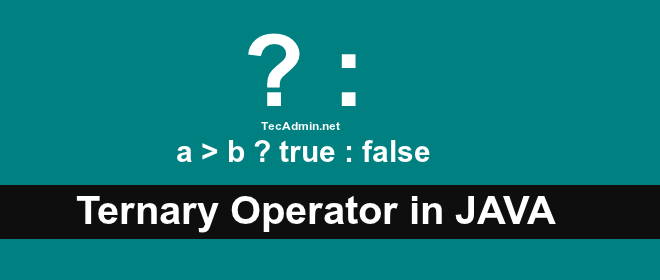
As other programming languages, Java also provides ternary operator. The ternary operator is the simple one liner statement of an if-then-else statement. A ternary operator uses ? and : simbles. A simple ternary operator works similar to the if-then-else statement. If any condition evaluates to true then true statement executed else false statement executed. Below is the basic syntax of ternary operator in java: Syntax of ternary operator condition ? trueStatement : falseStatement Basically, there are 3 parts of statement seprated with ? and : symbols. Condition : First part is the condition section. trueStatement : Second is the code…
JavaScript has cemented its place as one of the most popular and widely used programming languages in the world, and for good reason. Its dynamic nature and versatility make it a go-to choice for web development, from client-side interactivity to server-side programming. A significant factor contributing to its efficiency is the variety of built-in methods, and one such useful method is the Array.prototype.every() method. This article will take a deep dive into the every() method, highlighting its functionality, showcasing its usage, and revealing some tricks to make the most out of it. Whether you’re a seasoned developer or a beginner…
RAID is the acronym for redundant array of inexpensive disks, but with the world getting digitalized and sneak peaking the heights of efficiency and success, it is renamed as the redundant array of independent disk that is responsible for storing your valuable data with complete protocol and provides you with the facility of fault tolerance that might not be possible in the general or traditional storage devices. Why use RAID Why one should rely on the hard disk drives or the temporary storage media when RAID is the field to work with the efficiency a way better than other storage…
The Debian users still have to wait for most awaited release Debian 9. The Debian 9 Stretch will be released on June 17, 2017. It’s development code name is Stretch. For Debian 9 codename was announced on Nov 09, 2014. The Strech name has been taken from Toy Story. Lifecycle of Debain 9 Stretch The Debian development team is making hard work to make the final release out. Finally, they reach near to its release date. On Nov 09, 2014 its codename was announced. Below is the lifecycle of Debian 9 before the release. About release date Debian Release Management…
The JavaScript forEach() method run once for each element in an array. For example to navigate to array and perform any action on each array element. The JavaScript forEach() method is useful in this situation. JavaScript forEach() method uses following syntax: arrayName.forEach(function callback(currentValue, index, array) { // action on array element // action on array element }[, thisArg]); JavaScript forEach() Example: Below is the example of JavaScript forEach() method. In this example first we intialize and games array with some element. After that print each array element to console using forEach() method.
1 2 3 4 5 6 7 8 | <script type="text/javascript> var games = ["chess", "football", "teniss", "pool"]; games.forEach(function(entry) { console.log(entry); }); </script> |
How to Append Element to Array in…
PyCharm is the best IDE for Python development. This Python IDE is available in professional and community editions. The community edition is freely available, but professional edition has more features. Visit here to find the difference in community and professional edition. This tutorial describe you to how to install PyCharm in Ubuntu 18.04 LTS Linux systems. Prerequisites Login with a sudo privileged account on your Ubuntu system. Then, launch a terminal from all applications or use CTRL+ALT+T shortcut keys. Step 1 – Install PyCharm on Ubuntu 18.04 PyCharm comes in 2 edition, The first one is a community edition available…